This article will assist you with configuring your server settings in Dreamweaver CS5.
Add New Server
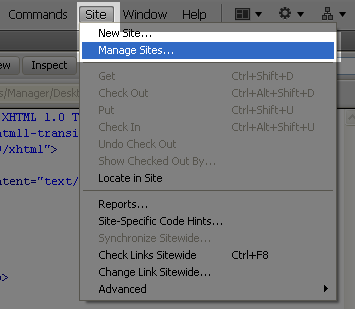
- Open your current site by clicking Site and then Manage Sites…

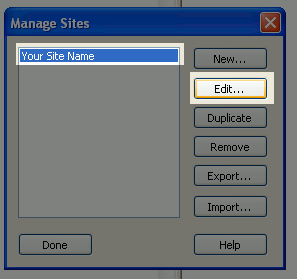
- Choose your site from the list, and then click “Edit”

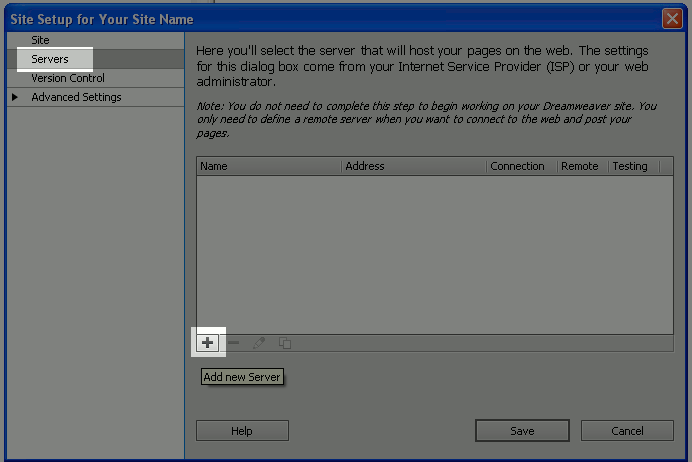
- If you don’t already have a server configured, click “Servers” and then click the plus + sign to add a new server. If you already configured a server, choose the server from the list and click the pencil icon to modify it.

Basic Server Settings
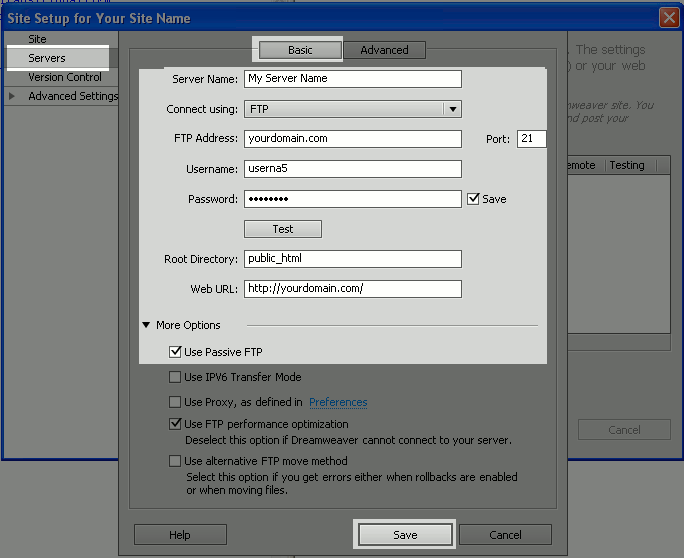
Fill out the Basic server settings as described below, and then click “Test“
- Server Name: Enter a name for this server
- Connect using: Choose FTP
- FTP Address: Enter your domain name here
- Username and Password: Enter your cPanel username and password
- Root Directory: If you are setting this up for your main domain, enter public_html
- Web URL: This will auto fill in for you when you enter a root directory. Please be sure to remove “public_html” from the Web URL so that it only reads https://example.com
- More Options – Use Passive FTP: Select “Use Passive FTP”
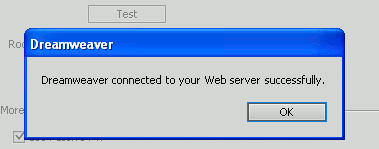
When your server settings test was a success, click “OK” and then click “Save“
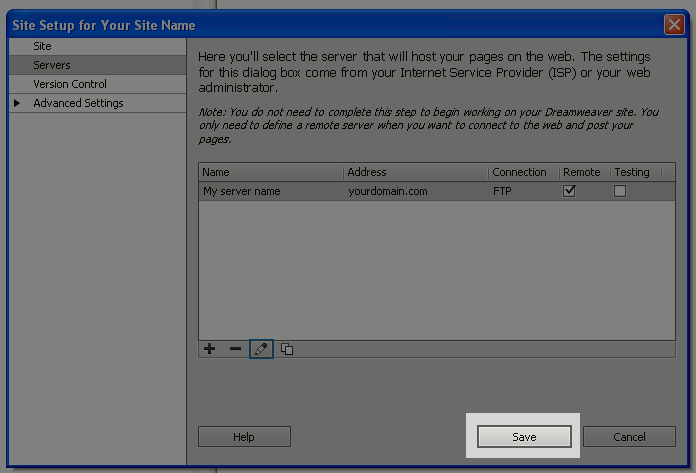
After you have properly configured your server, click “Save“
Congratulations, now you know how to configure server settings For Dreamweaver CS5!



I am looking for a guide on how to use Dreamweaver to edit the html of the child theme. I don’t understand how to do this because the child theme currently has very few files. Do I make the changes and then save them to the child theme? Thanks in advance for your help.
Here is a link to a guide I found on the official Adobe site on Designing WordPress Child Themes with Dreamweaver CC.
Thank you,
John-Paul
The root directory, I think, differs from host to host
No, that guide is for CS5 and below. Dreamweaver has removed those options in CS6 apparently. It is no longer possible to connect to the server via SFTP with SSH key.
I found out that you can make it work via a round-about method with bitvise ssh client although that’s of little use to me on a mac. Detailed instructions here – https://stackoverflow.com/questions/11942653/dreamweaver-cs6-ssh-private-key-sftp-on-amazon-ec2
There is no excuse for Inmotion to not be aware of this if they are going to force SSH keys for SFTP connections. This has wasted a lot of my time and documentation is poor and out of date. As another example of this, even though the SSH Key guide continues to talk about puttygen, it is no longer needed as your own service allows conversion to PPK right from cpanel.
Hopefully this helps someone.
Thanks
My web site brings up a generic WordPress site. I’ve talked to the IMH support staff and they gave me these instructions – which didn’t help. How can I get my site back using Dreamweaver?
So, I’m assuming you have a local copy of your site you built with Dreamweaver? You would need to set up Dreamweaver to push those files from your local computer to the server using FTP. This article explains how to do that. You will need to configure Dreamweaver to publish your site. This tutorial will walk you through the settings needed to do so.
What if I don’t want to connect via FTP and want to connect SFTP? FTP is not secure and not recommended. I am having trouble accessing the server via dreamweaver and yet Filezilla connects without issue.
Hello JPCreative,
Thank you for contacting us. Here is a helpful link to our guide on Connecting to SFTP for Shared Accounts. That guide explains how to create secure keys.
The Official DreamWeaver guide includes a section on setting up SFTP.
If you have any further questions, feel free to post them below.
Thank you,
John-Paul
If my web designer uses Dreamweaver, I need to give him my cpanel password, correct? I’ve set up an FTP account for him, but that user/pass doesn’t work in Dreamweaver. Does it work only for Filezilla and the others listed upon clicking “Configure FTP client”?
Hello Tracy,
That account should work for DreamWeaver. Please be sure the username you are using is [email protected]. It looks like an email address but that is how extra FTP accounts look like within cPanel.
Best Regards,
TJ Edens
Whats is the ip address from my FTP, because the DNS are still the old ones, so I need the IP address to make the conection until the DNS setting are changed. Thanks
Hello Claudio,
You can find your IP address for FTP by going into the cPanel. Check out: How to find your shared IP address of your server in cPanel. You can also use your server name by looking at the technical server info. If you want to see how that information is used, here’s an example of using the server name for the FTP credentials:
ftp://biz321.inmotionhosting.com
user name = someone5
pw= cPanel password
port = 21
directory where the files should be uploaded = public_html
I hope this helps to answer your question, please let us know if you require any further assistance.
Regards,
Arnel C.
It was all awesome
Worked like a charm! Good support
For a subdomain, would the Root Director look like this: Root Directory: public_html/subdomain (where you’d enter the name of your subdomain)
Yes, this would indeed be the correct root directory.
nice article very helpfull to me
Hello! I don’t know a server name in ftp setup on Dreamweaver… Can you help me please? Sorry for my English… Annette
Hello Annette,
If your domain is already pointed to our servers, then you can simply use the domain name. If it is not, you will need to know the server name on which your account resides. You may find our FTP Guide some help when configuring Dreamweaver’s FTP settings.
Kindest Regards,
Scott M