The following tutorial will assist you with connecting to your account via FTP using the Internet Explorer browser (versions 7 and 8). This is an easy way to use FTP with your web hosting account, and will work on all shared hosting / Virtual Private Servers / and dedicated servers.
Setting up FTP in Internet Explorer 7/8
- Open Internet Explorer.
- In the address bar, type the following and then hit enter:
ftp://userna5:[email protected]userna5 replace this with your cPanel username password replace this with your cPanel password example.com replace this with your actual domain name 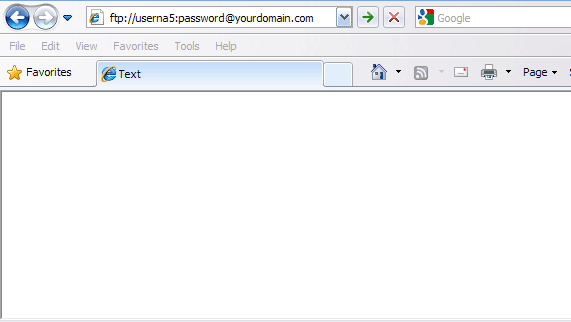
When you have connected successfully, you will see a page similar to the following:
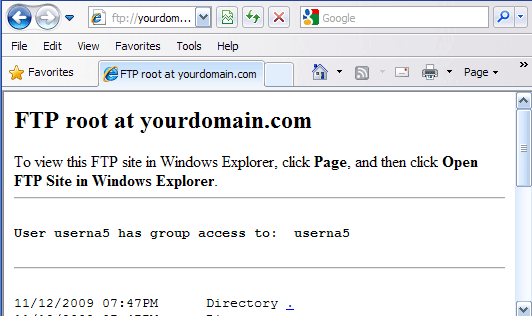
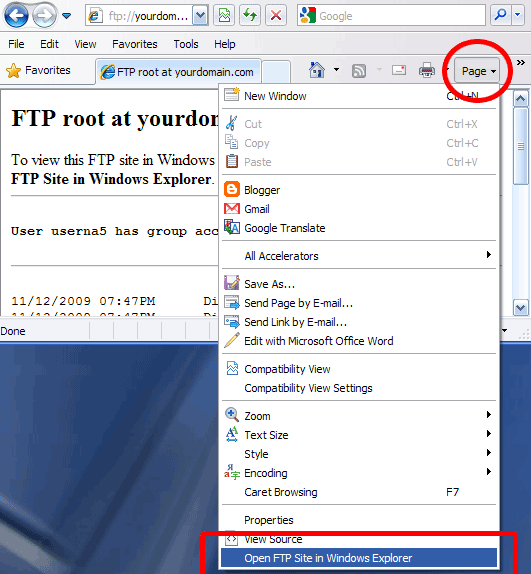
- Click, “Page” and then click, “Open FTP Site in Windows Explorer“
.
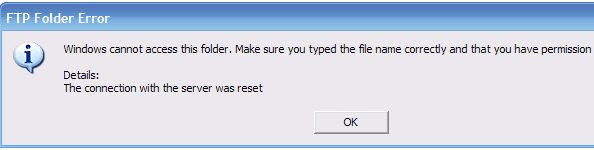
- You will receive a generic, “FTP Folder Error“. Click OK to continue.
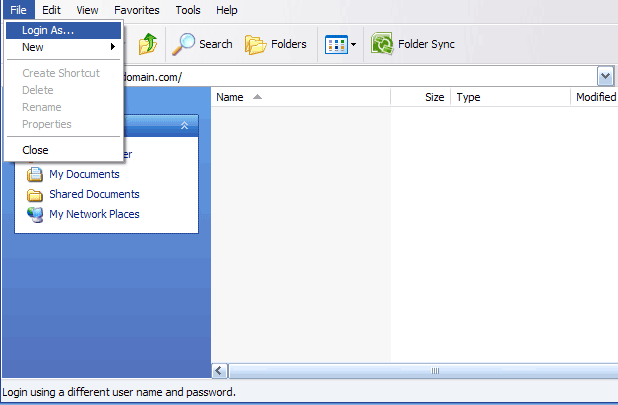
- Click, “File“, “Login As…“
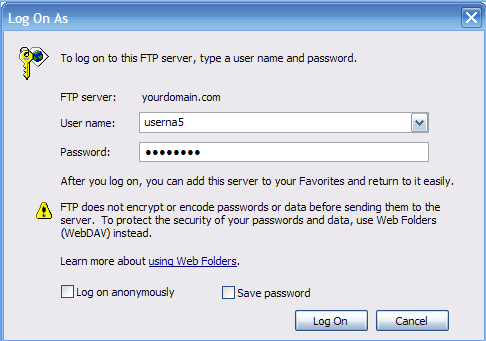
- Enter your cPanel username as the, “User name“, and enter your cPanel password as the, “Password“. Click, “Log On“


You are now connected to your account via FTP! To upload files, you can either copy/paste them into the ftp window, or you can drag and drop them from your desktop to the ftp window.


can we configure the internet explorer to run a routine to transfer file from local folder to ftp destination on another pc?
Hello lc,
You’d have to setup a batch file or something else that could automate it. Most likely you would be doing this as a script (not using IE). Please consult with a developer/programmer for assistance in automating this type of process.
If you have any further questions, please let us know.
Kindest regards,
Arnel C.
Sir, in that example. The “@” sine is in the user name. But in my case the “@” sine is with the password only… Password = “passkey@123”
Hello somnath,
I understand the article was not exactly the same, but it was the only possible workaround I was able to find.
Since IE 7 and 8 are very old and outdated (they are on IE11), it would be much simpler just to use Windows Explorer, FileZilla or one of the many other free FTP clients available. With older software it is difficult to troubleshoot, since it is no longer supported by its creator.
Thank you,
John-Paul
hi, i having a issue inserting the password, my password contening @ sign
ie. ftp://user:user@[email protected]/
user = User Name
user@1 = Password
myftp.com = actual domain name
kindly suggest how to pass the url in internet explorer without changing the password. as i am not the ftp server administrator.
Hello somnath,
Thank you for your question. I found a possible workaround via online search, where they suggest using the hex value.
For example:
user%401 = Password
If this does not help, it may be easier to use an FTP client such as FileZilla.
Thank you,
John-Paul