News & Announcemnets
How to Upload with SmartFTP ™
Download SmartFTP
1. To download SmartFTP click here.
Uploading with SmartFTP
1. Open SmartFTP
2. Address - type either your server name (ie. gs8.inmotionhosting.com) or your domain name is it is fully propagated.
3. Login - type the username that was sent in your welcome email (ie. userna5).
4. Password - type the admin password used to login to cPanel.
5. Press the Connect button
.
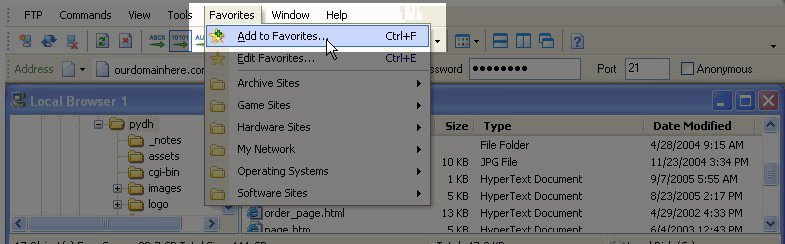
6. Press the Local Browser
button to bring up a browser for your local computer.
7. To organize the screens press the Tile Horizontally
button and this will align the two screens one on top of another.
8. To upload a file just drag from the Local Browser window to your remote site's window. Any files that you want to be live to the internet should be uploaded into the public_html directory and your homepage should be named index.html.
This concludes the tutorial on using SmartFTP ™ to upload to your website via FTP. If this tutorial did not answer your questions, or if new ones have surfaced please feel free to contact support.
Thats it! Back to Getting Started Guide or more Tutorials and User Guides
Contact InMotion Hosting
Toll-free: 888-321-4678International: +1 213-258-4422
Fax: 310-359-0211
support@inmotionhosting.com Need to update your billing or personal information?
Please print out the credit card update form and fax it
to our billing department at 310-359-0211.