You just want to run a website and make the most of your business’s email address, but managing spam is starting to feel like a full-time job. Sound familiar? It seems that no matter what we try, the world’s ‘spam artists’ find new ways to annoy us.
If you have never managed your own email before, the sheer volume of spam may shock you. That’s why cPanel comes pre-installed with Spam Filters powered by Apache SpamAssassin, one of the most powerful open source email filtering systems available. Use this guide to setup your server’s spam prevention to help cut down on the amount of spam you have to deal with!
- How SpamAssassin Works
- Enabling and Disabling SpamAssassin in cPanel
- Optimizing SpamAssassin for Your Account
- How SpamAssassin Scores Spam Messages
- How to Modify the Spam Threshold Score
- Choosing a Spam Threshold Score
- The Spam Box
- Enable/Disable the Auto-Delete Feature
- Auto-Delete Spam Threshold Score
- SpamAssassin is Enabled and Still Getting Spam
- Using Filters to Organize Spam
- How to Manage Blacklist Filters
- How to Manage Whitelist Filters
How SpamAssassin Works
Note: SpamAssassin is the software that powers cPanel’s spam filtering system. Newer versions of cPanel will list these resources under Spam Filters, but older versions on some servers may keep everything under SpamAssassin. Don’t worry — the resources are the same no matter what the icon is called! In WebHost Manager (WHM), different anti-spam settings are listed alongside related server functions.
cPanel’s Spam Filters powered by SpamAssassin are not an all-or-nothing email filter, as some other spam prevention tools are. Instead, they determine whether an email is spam as soon as it hits the server. SpamAssassin works on the back end of your email server and has 10 different levels of settings to catch spam. When enabled by default, your filters will be set to 5. This is mid-range — but what exactly does that mean?
How the Point System Works
SpamAssassin uses a points-based system called “hits” to label spam. When it finds particular characteristics in an email it assigns a point value. These ‘characteristics’ can include everything from words and topics commonly found in spam emails, to malicious code, and even custom values you set yourself. If the email exceeds the maximum point value you set, the email is flagged as spam.
The lower the score you set, the more email will be caught as spam. For example, a setting of 1 means that only one hit needs to be flagged against an email for it to be considered spam. If you set the score higher, more hits will be required on an email for it to be labeled as spam. So, the lower the score, the more emails should be flagged as spam.
We suggest testing the different settings prior to using a higher setting.
Enabling and Disabling SpamAssassin in cPanel
How to Enable SpamAssassin
- Log into cPanel.
- Under the Email section, click on the Spam Filters icon.
- Click on the toggle switch that appears before Process New Emails and Mark them as Spam.
 NOTICE: The toggle should change to blue and a green success message will appear, indicating: “Apache SpamAssassin has been enabled.”
How to Disable SpamAssassin
- Log into cPanel.
- Under the Email section, click on the Spam Filters icon.
- Click on the toggle switch that appears before Process New Emails and Mark them as Spam.
 NOTICE: The toggle should change to grey and a green success message will appear, indicating: “Apache SpamAssassin has been disabled.”
Optimizing SpamAssassin for Your Account
How SpamAssassin Scores Spam Messages
With spam comprising almost 80% of all emails sent across the planet, it is definitely important to try and filter them out as best you can. With a tool like SpamAssassin, each email will be evaluated against a score standard and either allowed to pass to your mailbox or flagged as spam and dealt with accordingly.
There are many different factors that SpamAssassin uses while trying to determine if a message is possibly spam or not. If you review our guide on why does SpamAssassin label my email as spam that should give you a good understanding of what it’s looking for when scoring a message.
You can also take a look at the long list of SpamAssassin tests performed in v3.3.x for the complete list along with scores of all the various tests SpamAssassin runs on your messages.
How to Modify the Spam Threshold Score
The Spam Threshold Score is the limit that can be set to identify spam messages in your email account(s). When SpamAssassin is enabled, it assigns a score to each email based on how likely it is to be spam. With a range of 0-10, the default setting for SpamAssassin is 5, which is right in the middle. If an email is given a score above the threshold, SpamAssassin will modify the header of that email to identify it as spam. The email header can then be used to filter spam away from your inbox, according to the settings configured in the Spam Filters plugin for cPanel. In this guide, you can learn how to modify the Spam Threshold Score.
Spam Threshold Score
- Log into cPanel.
- Under the Email section, click on the Spam Filters icon.
- Under the toggle switch labeled: Process New Emails and Mark them as Spam, there is a brief description of how SpamAssassin works. Click on the link at the end, Spam Threshold Score.
- Select a value from the Spam Threshold Score (required_score) drop-down menu.
NOTE: The lower the Spam Threshold Score, the more strict the filter will be, resulting in the possibility of less spam appearing in your inbox. However, this may also cause more legitimate emails to be identified as spam (and possibly filtered away from your inbox).
On the contrary, the higher the Spam Threshold Score, the less strict the filter will be, resulting in the possibility of fewer emails being falsely identified as spam. However, this may also cause more spam to appear in your inbox.
The best way to determine which Spam Score is optimal for your email activity is to monitor the behavior closely while experimenting with various Spam Threshold Scores. For more assistance with this, please see below for a look at how to choose an effective spam threshold score.
- Finally, click the Update Scoring Options button to save your new Spam Threshold Score.
Choosing a Spam Threshold Score
The Spam Threshold Score plays an important role in classifying emails as legitimate or spam messages. Unfortunately, one size does not fit all when it comes to setting the optimal value for classifying spam. The best way to find the most effective threshold score is through trial and error.
First, you should enable the Spam Box and disable the auto-delete features in the Spam Filters settings. This will filter emails that exceed the threshold score to a dedicated folder (for you to further review) rather than automatically deleting them. This also prevents legitimate emails from being automatically deleted if the threshold score is too strict.
Once that is done, you can proceed to set the Spam Threshold Score. At first, you can try to use the default value (5). With these settings in place, you should monitor the spam box and inbox closely for a few days to a week (depending on the number of emails you receive). If you see more spam emails being sent to your inbox, you should change your threshold score to a lower value (to be more strict). If you see more legitimate emails being sent to your spam box, you should change the threshold score to a higher value (to be more lenient).
Although taking an active approach to controlling the amount of spam you receive may seem daunting, it can be as simple as trial and error. The suggestions above will help to make it is easy to find that Goldilocks, “just right” setting though.
The Spam Box
The Spam Box is a great feature that can help mitigate the number of spam emails that appear in your inbox. By enabling the spam box and setting an appropriate Spam Threshold Score you can filter potential spam emails to their own folder. Along with the added benefit of reducing the number of spam emails in your inbox, you will also gain the ability to review the emails that are being classified as spam prior to deletion. In the event legitimate emails are falsely identified as spam, you can move them to your inbox rather than having them automatically deleted and lost forever.
Enable or Disable the Spam Box
- Log into cPanel.
- Click on the Spam Filters icon, under the Email section.
- Click on the Move New Spam to a Separate Folder (Spam Box) toggle. The toggle should change to blue and a green success message will appear, indicating: “Success: Spam Box has been enabled.”
- To disable Spam Box, simply click the same toggle. The toggle should change to grey and a green success message will appear, indicating: “Success: Spam Box has been disabled.”
Enable/Disable the Auto-Delete Feature
Once you have fine-tuned your Spam Threshold Score, you can turn on the Auto-Delete feature. This feature will automatically delete email messages assigned a spam score higher than your configured value. Here’s how to enable/disable the Auto-Delete feature from within the Spam Filters interface in cPanel.
- Log into cPanel.
- Click on the Spam Filters icon under the Email section.
- Click on the Automatically Delete New Spam (Auto-Delete) toggle. The toggle should change to blue and a green success message will appear, indicating: “Spam Auto-Delete has been enabled.”
- To disable Auto-Delete, simply click the same toggle. The toggle should change to grey and a green success message will appear, indicating: “Spam Auto-Delete has been disabled.”
Auto-Delete Spam Threshold Score
If the auto-delete feature is enabled in your Spam Filters settings, you can configure a separate Spam Threshold Score. If an email exceeds this score, the message will be automatically deleted.
- Log into cPanel.
- Under the Email section, click on the Spam Filters icon.
- Under the toggle switch labeled: Automatically Delete New Spam (Auto-Delete), click on Configure Auto-Delete Settings
- In the Auto-Delete Threshold Score field, enter the numerical value that you would like.
WARNING: Email messages that are assigned a Spam Score higher than the value you set will be automatically deleted. Those email messages will not be able to be recovered. We recommend utilizing the Spam Box feature for filtering out spam.
IMPORTANT: You can not set this score below the current Spam Threshold Score.
- Click on the Update Auto-Delete Score button to save your changes.
SpamAssassin is Enabled and Still Getting Spam
You can adjust your SpamAssassin score settings to be more aggressive, by lowering the required_score value required to be met before a message is flagged as spam.
You can also blacklist or whitelist an email address or domain in SpamAssassin. So if you have one particular domain or user that keeps sending you spam that is getting by SpamAssassin, you could add them to your blacklist to have their messages automatically flagged as spam. Alternatively if someone you want to always be able to email you is having their messages flagged as spam, you could add them to your SpamAssassin whitelist.
Another thing that you can do is to block certain IPs from sending you email, or you can use cPanel user level email filtering to block other types of messages that SpamAssassin seems to be missing.
Using Filters to Organize Spam
In order to maximize the true power of SpamAssassin, we recommend you set up a Filter/Message rule in your mail client. Emails that are determined to be spam are still delivered to your inbox. Spam will begin with the subject line “SPAM“. By setting up filters in your email client you can sort the mail and have all messages labeled as spam placed into its folder for review later. This will keep junk mail out of your inbox. To learn how to set up filters in various email clients, please visit our guide on setting up email filters.
Blacklisting/Whitelisting Email addresses in SpamAssassin
How to Manage Blacklist Filters
An influx of unsolicited emails can be quite irritating. However, you can utilize SpamAssassin to help fight against spam. In particular, you can add email addresses to the Blacklist so that Spam Filters will classify messages from them as spam. In this guide, you can learn how to manage the SpamAssassin Blacklist using the Spam Filters plugin for cPanel.
View Blacklist
- Log into cPanel.
- Click on the Spam Filters icon located in the Email section.
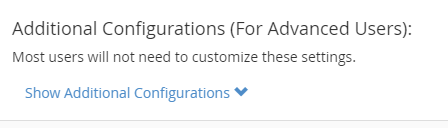
Under the Additional Configurations (For Advanced Users) section, click on Show Additional Configurations to expand the section. NOTE: This section and its options will only appear when SpamAssassin is enabled.
From the Blacklist (Emails Never Allowed) section, click on the link labeled: Edit Spam Blacklist Settings.
Now that you are familiar with where you can view the Blacklist, adding email addresses to the list is just a few clicks away. Follow along with the steps in the next section to learn how to add an email address to the Blacklist of SpamAssassin.
Add Email Address
- Log into cPanel and navigate to the Blacklist settings.
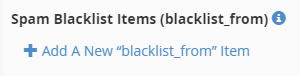
- Click on the Add A New “blacklist_from” Item link.
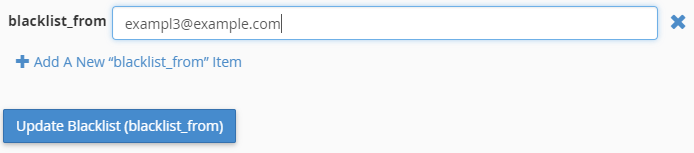
- A blacklist_from field will appear for you to enter the email address into. Repeat Step 2 and 3 for each email address you would like to add.
- Click the Update Blacklist (blacklist_from) button to save your changes.
Once you add email addresses to your Blacklist message from any of the email addresses listed within will be marked as spam by SpamAssassin. If you made an error or just want to remove an email address from the Blacklist, you can follow the steps in the section below.
Delete Email Address from Blacklist
- Log into cPanel and navigate to the Blacklist settings.
Click on the icon to the right on the blacklist_from field that contains the email address you would like to remove.

Click the Update Blacklist (blacklist_from) button to save your changes.
How to Manage Whitelist Filters
If you are expecting an email that you (based on your Spam Filters settings) think may be mistaken for spam, you can add the email address to a Whitelist. This will ensure that the message is not classified as spam. Here’s how to view the Whitelist Settings along with how to add and delete email addresses to manage the SpamAssassin Whitelist.
View Whitelist
NOTE: This section and its options will only appear when SpamAssassin is enabled.
- Log into cPanel.
- Click on the Spam Filters icon located in the Email section.
- Under the Additional Configurations (For Advanced Users) section, click on Show Additional Configurations to expand the section.
- From the Whitelist (Emails Always Allowed) section, click on the link labeled: Edit Spam Whitelist Settings.
Now that you are familiar with where you can view the Whitelist, adding email addresses to the list is just a few clicks away. Follow along with the steps in the next section to learn how to add an email address to the Whitelist of SpamAssassin.
Add Email Address
- Log into cPanel and navigate to the Whitelist settings.
- Click on the Add A New “whitelist_from” Item link.
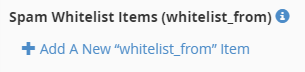
- A whitelist_from field will appear for you to enter the email address into. Repeat Step 2 and 3 for each email address you would like to add.
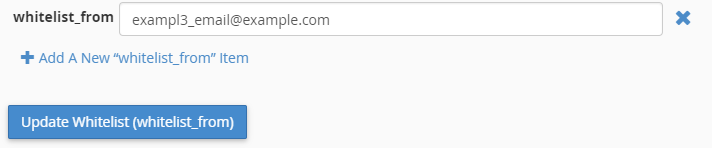
- Click the Update Whitelist (whitelist_from) button to save your changes.
Once you add email addresses to your Whitelist you should successfully receive messages from the specified email address(es) to your inbox and they should not be marked as spam. If you made an error or just want to remove an email address from the Whitelist, you can follow the steps in the section below.
Delete Email Address from Whitelist
- Log into cPanel and navigate to the Whitelist settings.
- Click on the icon to the right on the whitelist_from field that contains the email address you would like to remove.

- Click the Update Whitelist (whitelist_from) button to save your changes.

Upgrade to VPS Hosting for Peak Performance
Upgrade to InMotion VPS Hosting today for top-notch performance, security, and flexibility, and save up to $2,493 – a faster, stronger hosting solution is just a click away!
 Dedicated Resources NVMe SSD Storage High-Availability Ironclad Security Premium Support
How to Enable/Disable SpamAssassin in WHM
SpamAssassin is the primary application used to detect and mark incoming or outgoing spam emails for your cPanel-based VPS or Dedicated server. In some cases you may prefer to have it disabled; this is not recommended unless you are using a different solution to reduce or mark spam. Be aware that SpamAssassin can only be enabled account-wide. It cannot be specific to a created cPanel account.
Enabling or disabling Spam Assassin requires that you have root access.
- Login to the WHM.
- Next, under the Server Configuration section click on Tweak Settings.
- Tweak Settings has a lot of settings that you can change, but the one we’re looking for is under the MAIL tab. Click on the Mail tab to open the Mail options.
- Scroll down in the Mail options until you find Enable Apache Spam Assassin spam filter. In the column at right, click on ON to enable, or OFF to disable Apache SpamAssassin.
- When you have selected your choice, make sure that you click on the blue SAVE button at the bottom of the screen.
For more information on SpamAssassin, please see the official documentation.
How to Locate High Levels of SpamAssassin Activity
Can SpamAssassin Slow Down a Server?
While having SpamAssassin enabled for your users is a great option to help reduce the amount of spam that they deal with, if one particular user on your server is having an excessive amount of spam being processed for their account by SpamAssassin, it can lead to an increase in server demand.
If one user on your server is filling out their email address on every marketing list they come across or placing their email address in public places, at some point they could be receiving hundreds if not thousands of spam messages a day. Trying to have your server handle all of these could possibly be causing websites to run a bit slower, or delay other users trying to access their own email.
Please note that in order to follow the steps below, you’ll need to have root access to your VPS or dedicated server, so that you have access to the SpamAssassin logs.
When Should I Review SpamAssassin Logs?
If you happen to have a server load monitoring script setup to email you when the load on your server is spiking, or if you’ve reviewed our article on advanced server load monitoring and noticed that your server’s load is spiking at times, it would be good to review how often SpamAssassin is running for the accounts on your server.
Locate Users with the Highest SpamAssassin Executions
- Login to your server via SSH as the root user.
- Run the following command:
grep "SpamAssassin as" /var/log/exim_mainlog | awk -F"SpamAssassin as " '{print $2}' |
 awk '{print $1}' | sort | uniq -c | sort -n
Code breakdown:
grep “SpamAssassin as” /var/log/exim_mainlog Locate mentions of SpamAssassin in the Exim mail log. awk -F”SpamAssassin as ” ‘{print $2}’ | awk ‘{print $1}’ Use the awk command with the Field seperator set to SpamAssassin as and print out the 2nd set of data following that. Then use awk again to only print out the first column of data (usernames). sort | uniq -c | sort -n Sort the users by name, then uniquely count them, and finally sort them numerically by lowest to highest. You should get back something like:
3783 unserna1
 4339 userna6
 5111 userna3
 6588 userna5
So now we know that the userna5 user has had SpamAssassin run on at least 6,588 emails.
- Now we can take a look to see how often this user is having to have SpamAssassin scan messages with the following command:
grep "SpamAssassin as userna5" /var/log/exim_mainlog | sed -e 's#-# #g' -e 's#:# #g' |
 awk '{print $1"-"$2"-"$3,$4}' | uniq -c
Code breakdown:grep “SpamAssassin as userna5” /var/log/exim_mainlog Locate mentions of SpamAssassin in the Exim mail log for the user userna5 who had the highest amount of messages. sed -e ‘s#-# #g’ -e ‘s#:# #g’ Use the sed command to replace the hyphens – and the colons : that appear in the time stamps for the Exim mail log. awk ‘{print $1″-“$2”-“$3,$4}’ Use the awk command to print out the dates and just the hour column. uniq -c Uniquely count up the time stamps, to see how many times SpamAssassin had to run each hour. You should get back something like:
15 2013-01-16 00
 25 2013-01-16 01
 28 2013-01-16 02
 31 2013-01-16 03
 32 2013-01-16 04
 26 2013-01-16 05
 40 2013-01-16 06
 70 2013-01-16 07
 126 2013-01-16 08
 117 2013-01-16 09
 154 2013-01-16 10
 183 2013-01-16 11
 186 2013-01-16 12
 155 2013-01-16 13
 128 2013-01-16 14
 145 2013-01-16 15
 69 2013-01-16 16
So that’s about 1,530 times that SpamAssassin had to run today for that one user, and you can see that during some hours it had to run as many as 186 times.
Why Does SpamAssassin Label my Email as Spam?
SpamAssassin is an application that tests email messages in order to see if they are defined as spam or not. It performs hundreds of tests on the messages and will assign a score to the message. This score can then be used by applications in order to filter emails so that only the relevant messages get through to the user. The following article briefly lists the tests run by SpamAssassin, explains how to lower your spam score and avoid false positives, and also aids in understanding the Spam scores.
This information should prove helpful to you if you are attempting to send an email to a server using SpamAssassin, or if your outbound email is being flagged as spam before it is sent. Other spam monitoring software will generally work along similar lines, but this can vary greatly from software to software and company to company. When in doubt, check directly with the relevant software’s documentation.
Please keep in mind that the classification of email as spam or not-spam is the responsibility of the recipient’s email administrator and based on their server’s anti-spam settings — you cannot ‘force’ your email through. Attempting to do so is likely to make a message seem even more like spam! Keeping your email from ‘sounding spammy’ is an ongoing process and you must constantly adjust to remain in compliance with industry best practices as they change and adapt.
How Does SpamAssassin Determine that Email is Spam?
SpamAssassin checks many variables within an email in order to determine the spam score. A user can also change the settings that SpamAssassin uses in order to determine if an email will score as spam or not. The number and complexity of the tests are so numerous that it can be difficult to understand why an email was given a particular score.
How to Lower Your SpamAssassin Score
The main thing is to make sure that your email does not fall into the definition of being spam. Here are some common issues and items that should be included in your email as defined by the CAN-SPAM Act of 2003 (section 5):
- Provide an indication that the email is an advertisement
- Include a type of return email address that allows the recipient to opt-out
- Email includes a clear notice that there is an option to opt-out
- Email is not sent after a recipient had sent notice that they wish to no longer receive the email
- Email contains a valid, physical address.
Your email should not include the following:
- False or misleading information in the header
- False or misleading information in the subject line
Other great sources of information that would help to keep your email from being labeled as spam or generating a false positive result include:
Another option to help in keeping your email from being labeled as spam is to use Domain Keys. The Domain Key is an e-mail authentication system that allows for incoming mail to be checked against the server it was sent from to verify that the mail has not been modified. This verifies that the email is coming from the listed sender and allows abusive messages to be tracked with more ease.
Understanding X-Spam Scores
Reading the X-Spam scores in the header of an email can definitely appear to be difficult. When you become familiar with the sections of the header, it becomes much easier to identify the portions that deal with SpamAssassin. Here are some of the headers that will give you information on how SpamAssassin judged the email:
X-Spam-Score This is the numerical value assigned to the email by SpamAssassin based on its rating the email to be possible spam. Generally, the higher the number, the more that it is considered spam. The lower the number, the more that is considered a legitimate email or not spam. X-Spam-Flag This is typically either YES or NO; generally, a YES will indicate a SPAM message and NO a non-spam message. X-Spam-Report This report will typically either give an explanation of the spam identification provide a summary of the flags that the message triggered that mark it as spam. X-Spam-Bar This will either be a “-” indicating a non-spam email, or a number of “+” signs indicating how strongly SpamAssassin identified the email as spam. X-Spam-Status This is visible when a mail client is configured to show full headers. Can also contain a yes/no value indicating if it is spam, the total score for the message, the score required for a message to be classed as spam, version of SpamAssassin used. For the complete list, go to the definition of X-Spam-Status. Platform i: Using SpamAssassin
SpamAssassin is present with Platform i accounts through cPanel. The main difference is a few steps starting with the login to Platform i.
Adjusting the Spam Threshold Score
The Platform i dashboard manages emails through the cPanel interface. Follow the steps below to change the Spam Threshold Score that helps to determine how emails are marked as spam.
- Log into InMotionCentral and click on Emails.
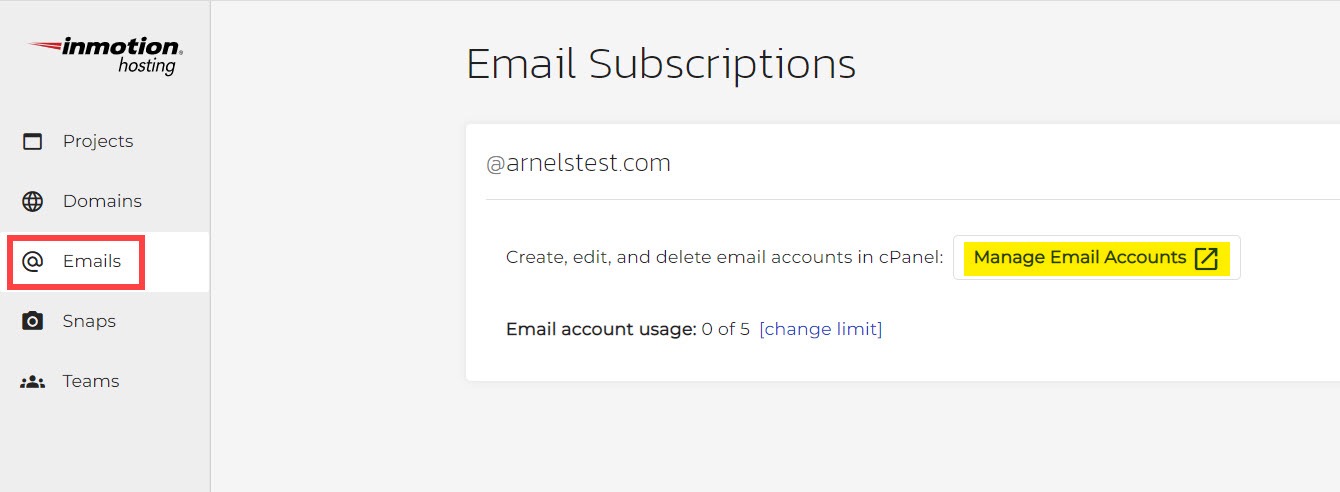
- Click on Manage Email Accounts. This will open cPanel.
- Click on Spam Filters.
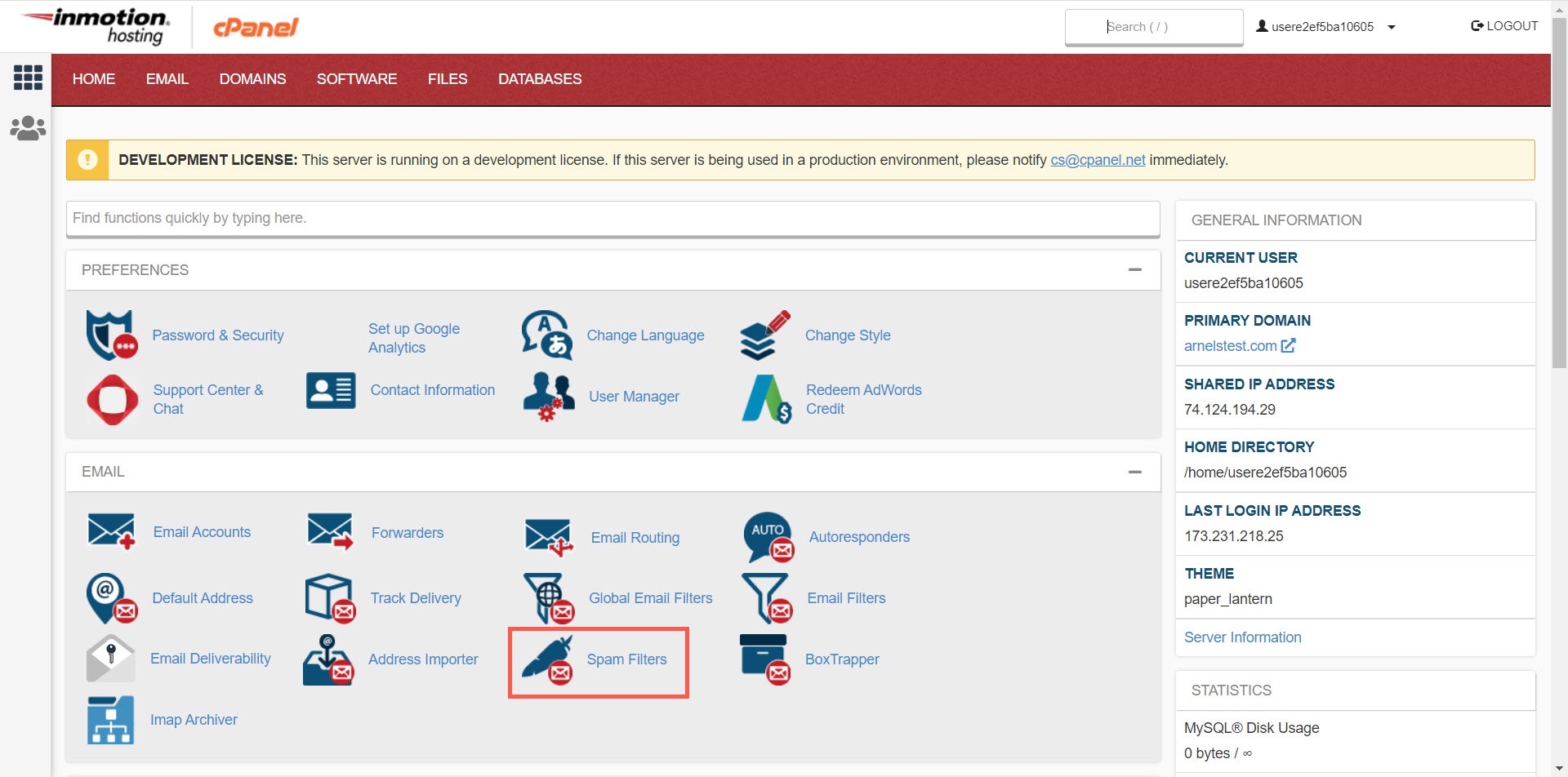
- When you’re on the Adjust Spam Threshold Score you will see an explanation of how the score works and a drop-down menu to select a score. Basically, the lower the score, the more emails will be flagged as spam. A higher score means fewer emails will be marked as spam. Click on the drop-down menu to see the options that you can select.
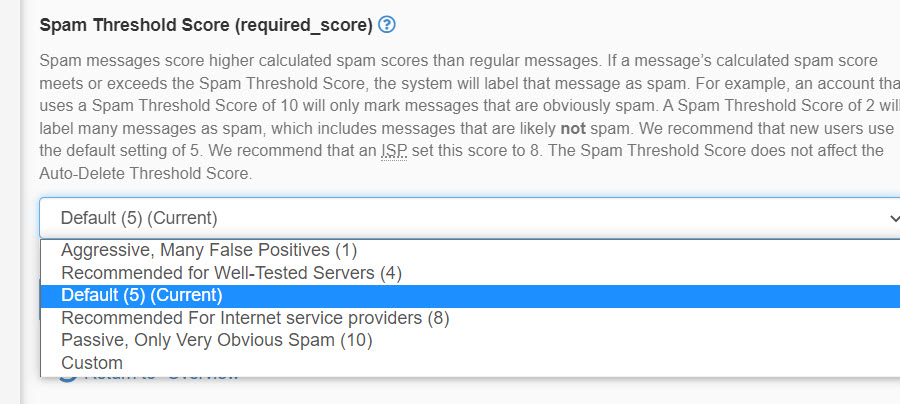
Here you will see each number marked with a description to help you choose how aggressive or passive you will want to make the spam filter.
You will also have an option called Custom that allows you simply type in a number. The default score is 5. To make the spam filter less aggressive, choose 8, or select Custom and type in a number higher than 5.
Remember that the Spam Threshold Score only determines how emails are FLAGGED as spam. Emails marked spam will not be deleted unless that option is set in the Spam Filters section.
Whitelisting Emails
The other way that you can stop incoming emails from being flagged as spam is to whitelist a domain or specific email address. Whitelisted domains or emails will not be filtered as spam.- Login to InMotionCentral, then click on Emails.
- Click on Manage Email Accounts to get to the cPanel.
- Click on Spam Filters.
- When you’re on the Spam Filters page scroll to the bottom and click on Show Additional Configurations.
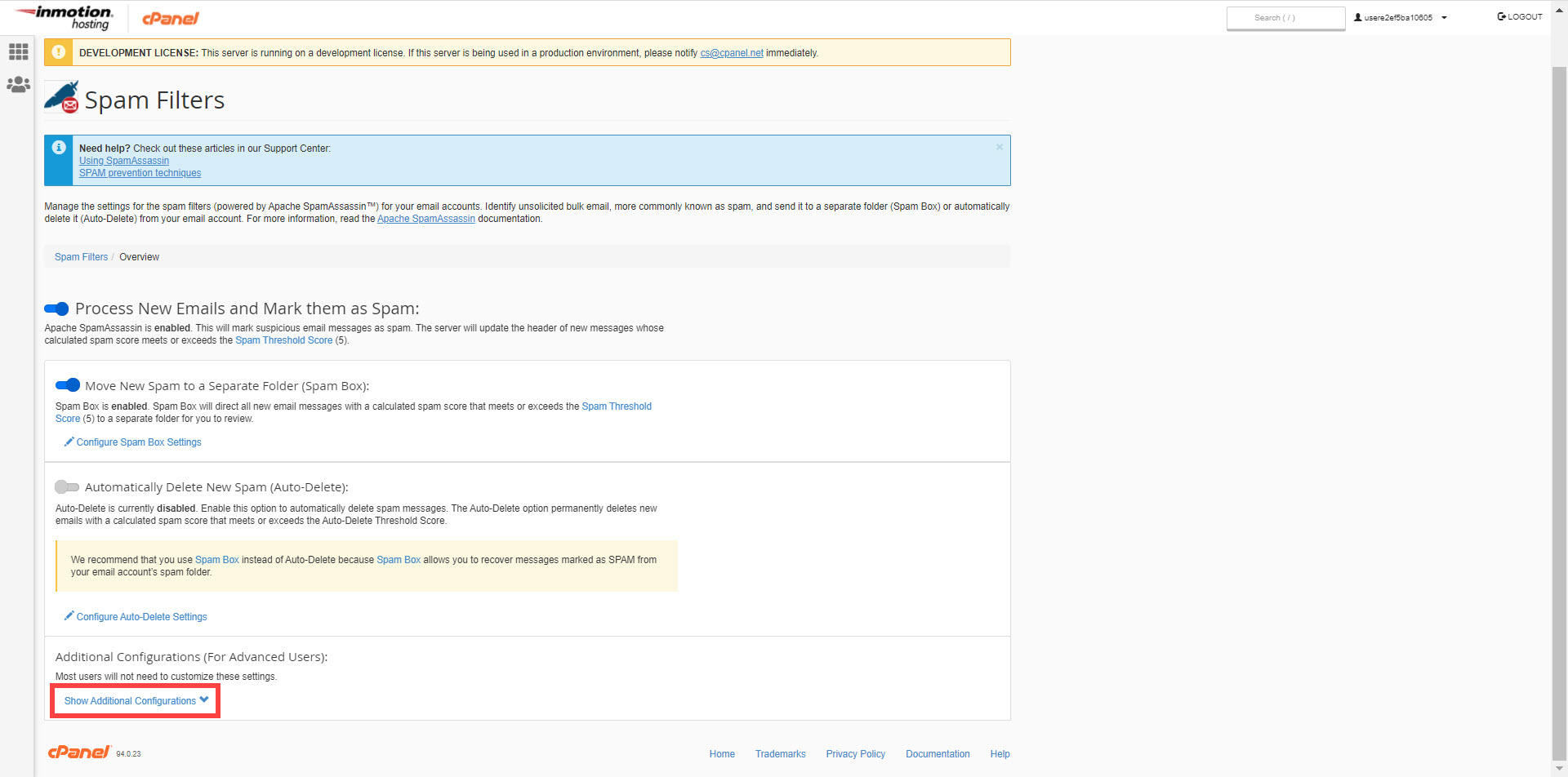
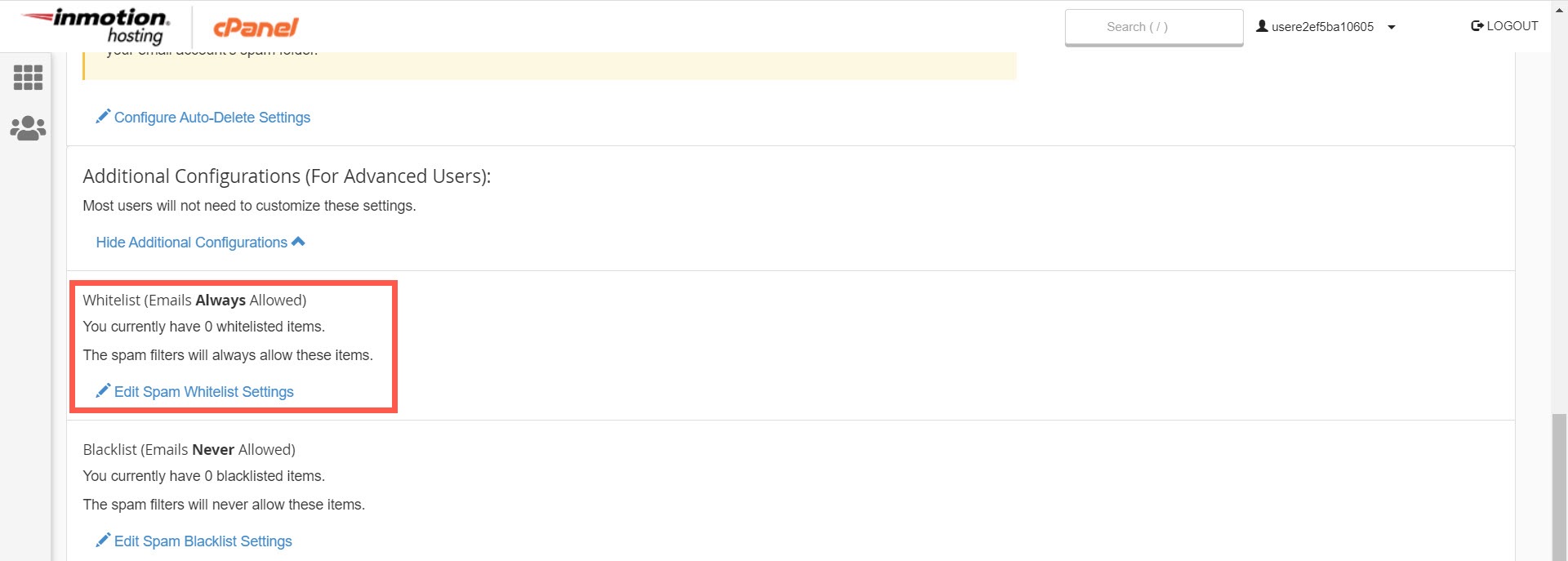
- The first option that will appear in the additional configurations will be the option for whitelisting emails. Click on the link labeled Edit Spam Whitelist Settings.
- When you open the Whitelist page, you’ll see the option labeled + Add A New “whitelist_from” item. Type in the email address to whitelist. If you want to whitelist a domain, then add it in this format: @example.com.
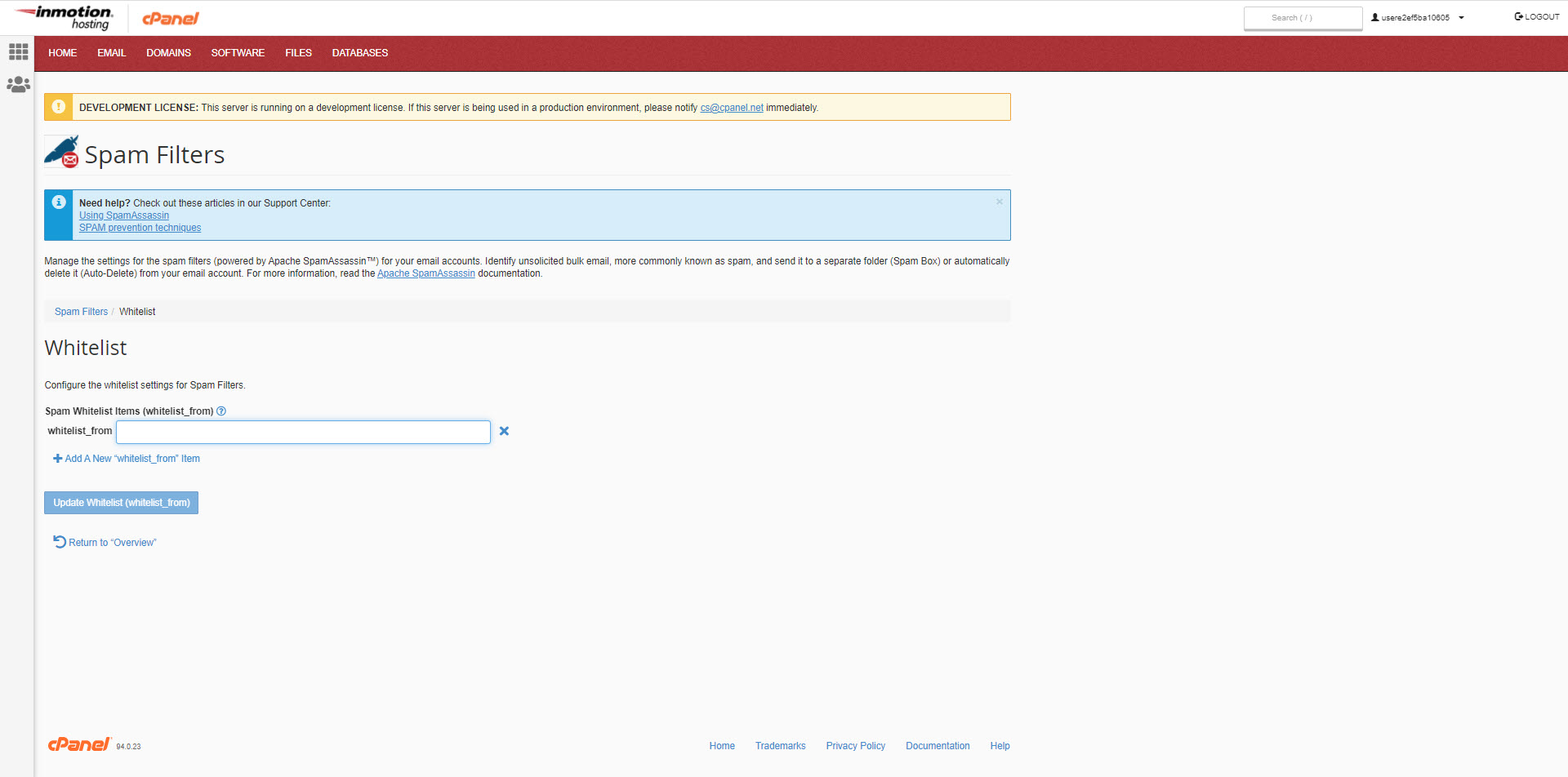
- When you’ve finished adding the email address or domain, click on +Add A New “whitelist_from” item to add another item. Or, click on the Update Whitelist (whitelist_from) button to save your whitelisted item.
It’s recommended that you do not whitelist your domain as some spammers can take advantage of that and impersonate your domain for spam delivery.We hope that the above guides have helped you understand cPanel’s Spam Filters, SpamAssassin, and various techniques to improve your email administration. For more information on how to be an email administrator, please take a look at our email tutorials!
46 thoughts on “SpamAssassin: Fighting Spam”
Was this article helpful? Join the conversation!




SpamAssassin is filtering suspect spam and some legitimate emails too. But they simply vanish and never appear in the spam box I have set up. This has been an ongoing problem for more than a year. Where do suspect spam emails go?
Hello Patrick – if SpamAssassin is not set up properly, then it is possible to lose email. If you want to review email that is marked as spam, then the spam box must be enabled. If you feel that you have set it correctly, then please submit a support ticket to our live technical support team. They will be able to review the email logs to see what’s happening.
I don’t see any way to change/save the Spam Score other than the default of 5. I would like to make it 3 but there doesn’t seem to be a way to save that. It keeps going back to the default of 5. How can I do that?
I advise contact our Live Support team since the behavior you describe is not normal. Support will be able to log in and replicate the problem if it is replicable.
Is SpamAssassin necessary for accounts that do not use Webmail? For instance, I have several WordPress sites that send emails via forms, clients whose DNS runs through the server, but everyone is using a remote MX … I have always wondered what benefit SA provided in this scenerio.
SpamAssassin can be a good tool for any address receiving email spam only if the email is hosted on the same server. If you are using a remote MX record hosted elsewhere you should see if that server has SpamAssassin or something similar.
Thank you,
John-Paul
Have to admit that spam assassin has always confused me. I have several email addresses. Looks like assassin is set up only once for a domain name- not for each address. Is that correct? If so, then is it true where is the spam folder created?
I have had some mystery missing emails forever and just figured out that I was probably trashing them with SA. It is difficult to test as one cannot send self spam to see what happens!
Thanks,
Bob
Hey Bob!
I can understand your confusion. SpamAssassin, although it can be VERY helpful, I agree, can also be difficult to tweak the configuration efficiently without being able to test things.
With that said, check out our guide on Checking the SpamBox “spam” folder. I recommend using the RoundCube Webmail Application as it tends to work better with syncing the spam folder on all your devices as well. Otherwise, I recommend following the Horde instructions which will allow you to show that folder, without having to navigate through settings/menus.
As far as configuring SpamAssassin, I always recommend disabling the auto-delete feature while configuring it with a stricter score (Note: the lower the score, the more emails will be identified/flagged as spam) and consistently monitoring the SpamBox for false positives. As you monitor your Inbox and Spam folder, you can lower or raise the score. Once you find a satisfying/comfortable score number and have added a whitelist/blacklist, go ahead and enable the “auto-delete” feature. I hope this helps! Please feel free to leave a comment if you have any further questions, we’re always happy to help!
Watch out: there are almost ZERO configuration options for spam assassin and you can’t alter the ~/.spamassassin/user_prefs file to fine-tune the settings when you are on a shared or reseller plan.
The problem with this is that inmotion has their spamassassin setup to prefix all suspected spam with ‘***SPAM***’, so it is an eyesore in your inbox. The hit rate is 50/50 so you have legit mails marked as ***SPAM***
I suggest filtering Spam into a folder specifically and checking it regularly.
For VPS, look up MagicSpam and Greylisting, both are great. I wish they were offered as plugins for the reseller WHM!
Thank you for sharing your suggestions!
Cheers,
John-Paul
I use SpamAssassin but get an insurmountable amount of spam on two of my email addresses. Consequently the quotas (which I’ve raised a few times) get maxed out almost daily and I have to clear the spam box daily or we can’t send or get mail on those accounts. To be clear, it’s not that SpamAssassin isn’t catching spam, it’s that there’s SO much of it (spam counts toward the quota) that those two email addresses are being rendered nearly unusable. How can I stop spam from eating up all my quota??
Sharpsburgian, spam email will only count against your quota if your a subsequently forwarding email to another account. This then counts the new message as a sent email for your account. You would need to disable your email forwarders to prevent this from counting as your sent mail. Alternatively, you may wish to review, and possibly implement our new SpamExperts service.
I can’t figure out how to find the spam box. Can you tell me how. I configured spam assasin and brought the number way down, but I think I may have missed some emails.
thanks,
Andy
Andy, if you enabled the SpamAssassin feature to move your spam messages, you should find any flagged messages in the folder named ‘spam’. If you can’t see this folder, you may need to ‘subscribe’ to it from your webmail, or email client.
I’m disappointed in this aspect of InMotion’s service. I’m transferring over from a much less respected hosting company that allows spamassassin training in shared servers. They simply have sa-learn installed locally and you can then run cron jobs to handle the training. Is there no option for installing sa-learn locally?
Hello Mike,
Sorry for the difference in policy with SpamAssassin. Part of the reason with the Spamassassin self-learning not activated has to do with the performance of the server. You can always manually use filters to stop many of the issues as well, but I can understand the convenience of the self-learning system. There is also a replacement system for the departing McAffee option to filter spam called SpamExperts. This is a paid solution, but it another solution that can be used to help stop spam from hitting your email account.
If you have any further questions or comments, please let us know.
Regards,
Arnel C.
For items that got flagged as spam incorrectly… is adding it to the whitelist the only way to fix that? (Some email clients have a “not spam” button, or something similar)
Thank you,
Johnny
It is the best way to do it through the cPanel. However, you could also use local client filters depending on which client you’re using. Mozilla Thunderbird filters are very intuitive, but alternatively using a gmail account as a client takes advantages of Google’s filters, which are excellent.
Hello. Is there a way to keep SpamAssassin from modifying the subject line of emails it determines to be spam? I can use the other items in the header (i.e. X-Spam-Status) to filter spam emails using my email client but on occasion I do receive emails marked as spam that are not. For these emails I can add rules in my email client to catch them but SpamAssassin has already modified the subject line which makes them more difficult to organize. Thanks for your help.
If you have a VPS or Dedicated server, you may be able to adjust the rewrite, or add header.
Thank you,
John-Paul
Just set up SpamAssassin, and enabled the spam folder but I’m not seeing it on the webmail. Also set the filter to level 7 and still seeing an awful lot of spam come through – I’m nervous about setting it much higher lest I filter out valid senders too?
Hello Catherine,
If you have enabled the spam folder and Spam Assassin, then you should see the folder in Webmail – once spam has been detected (it won’t show if there is no spam). If you are not seeing it, then we can look into the issue, but we need more information about your account (if you are an InMotion customer). We would need the mail account information as well.
If you have any further questions or comments, please let us know.
Regards,
Arnel C.
I am getting hundreds of spam and junk email and don’t know what to do about it. I use outlook so not sure if that is doing anything to contribute to he amount of junk I’m getting. I have the settings set for 1:1 but it doesn’t seem to be helping at all.
I’ve discovered that if you’re on a VPS, you can set up a cron job to run sa-learn. I do not know about other forms of hosting, however. I have been told that you can run sa-learn from the command line IF you have shell access on your account, but you have to have a VPS account or higher.
Is it possible to run sa-learn from the command line? I have a small shell script that ran sa-learn on my previous host so that I could update HAM and SPAM.
Hello Roger,
Our shared servers will not allow the sa-learn to run on them.
Kindest Regards,
Scott M
Is there anything in place on VPS accounts that runs Bayes learning/filter programs automatically, or will I need to set that up myself through a cron job? It appears as though something is happening with Spamassassin learning something, but I’m really not too sure.
Hello Craig,
Thank you for contacting us. While, we do not have system like that in place, you definitely have the ability to set it up, or configure it.
If you are having trouble, or have a specific question about Spam Assassin, we would be happy to help you.
Thank you,
John-Paul
Which version of spam assasin are you running on the servers?
Hello Lori,
While version may vary slightly from server to server, it appears that we are using SpamAssassin 3.3.1
Kindest Regards,
Scott M
I was receiving a lot of “junk” email so I played around with all the spam filters. Good news it stopped everything. The bad news it stopped EVERYTHING! I have disabled everything I could find, but now if someone sends an email to me, the system sends a “challenge” email back to them. If it is a human and they reply to the challenge email they get an email telling them that they are on the whitelist and can now send an email. How do I turn off the challenge part?
Hello Jim,
That sounds like you still have the BoxTrapper still running. Disabling that will stop the challenge emails from being sent.
Kindest Regards,
Scott M
When using Spam Box, if we use imap will the spam folder show up in a local Outlook client?
Hello Tim,
Thank you for your email spam box question. Yes, since IMAP leaves all the files on the server by default, any client connecting via IMAP should be able to see all the folders including the Spam box.
Ensure you Subscribed to your INBOX in Outlook, so you can view all folders available on the server.
If you have any further questions, feel free to post them below.
Thank you,
John-Paul
I’ve never ONCE seen a spam e-mail come through my SpamAssassin filter with “spam” appended to the subject line. I’ve got my Spam Score set to 1.1, and I specifically added rules to my configuration file that call for the subject to be modified.
Hello Craig,
Thanks for the comment. If you want to see if you’re getting any spam, log in to webmail then look for the SPAM folder and see if spam is being stored in the folder. Otherwise, you may not be receiving any spam into your account.
Regards,
Arnel C.
if I setup 3 that means I can stop more spam emails. I am getting lot fo junk email as zip files? how do I stop those. like the messages from AutoWarranty,
IncomingFax.zip
On shared hosting accounts, it is not possible to filter zip files, however, on a VPS or dedicated server, ClamAV can be set up which will scan and remove unwanted zip files.
It seems the instruction on this page counter the instructions on Spam Assasin…they say set the number higher (for ISP) ” but if you’re an ISP installing SpamAssassin, you should probably set the default to be more conservative, like 8.0 or 10.0″
Hello Michael,
Thank you for your comment. SpamAssassin uses a default threshold of 5, as per their Official Documentation.
You can always change your SpamAssassin settings in cPanel at any time.
If you are following a specific guide, we would be happy to take a look? Can you provide a link to the guide?
If you have any further questions, feel free to post them below.
Thank you,
-John-Paul
When I identify SPAM emails, do I place the word SPAM on the subject line?
When SpamAssassin identifies any spam, it will automatically place the word spam within the subject line.