All of our Shared Hosting, VPS Hosting, and Dedicated Servers include FTP access. In this tutorial, we’ll walk you through the steps for configuring your FTP settings in WS_FTP so you can connect to your server and upload files.
Before attempting to connect, be sure you have your cPanel username and password ready, as this will be your FTP username and password.
To configure your FTP site in WS_FTP:
- Open WS_FTP
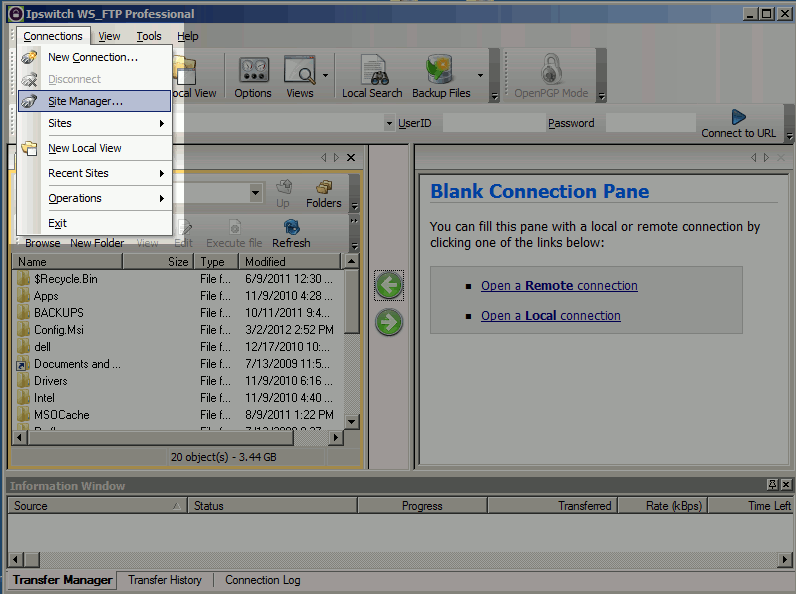
- In the top menu, under Connections click Site Manager
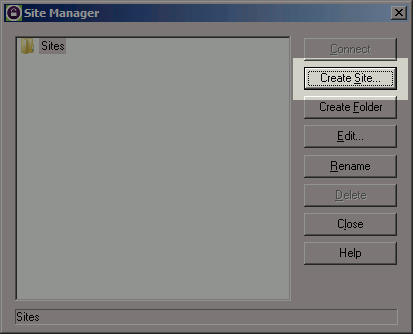
- Click Create Site…
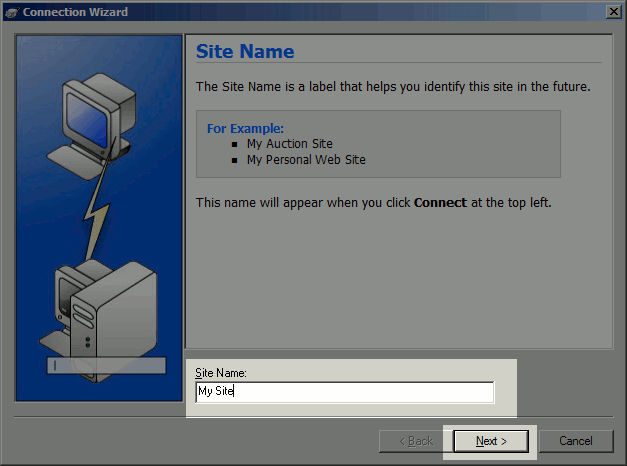
- Enter a Site Name and click Next
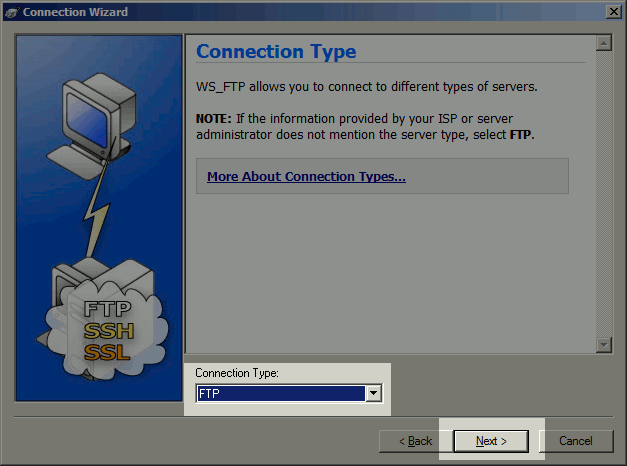
- Select FTP as the Connection Type and click Next
- Enter example.com (replace with your actual domain name) as your Server Address
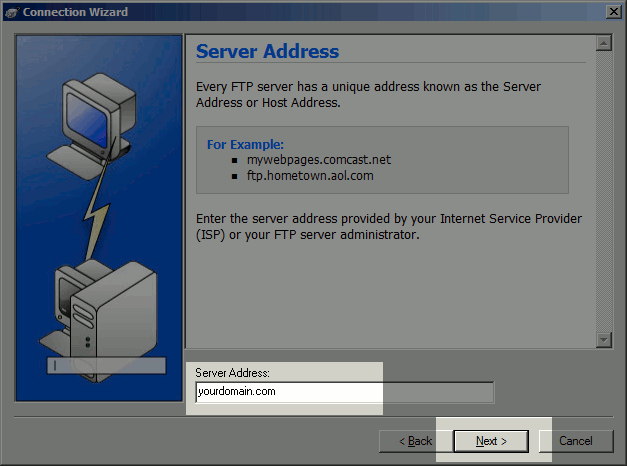
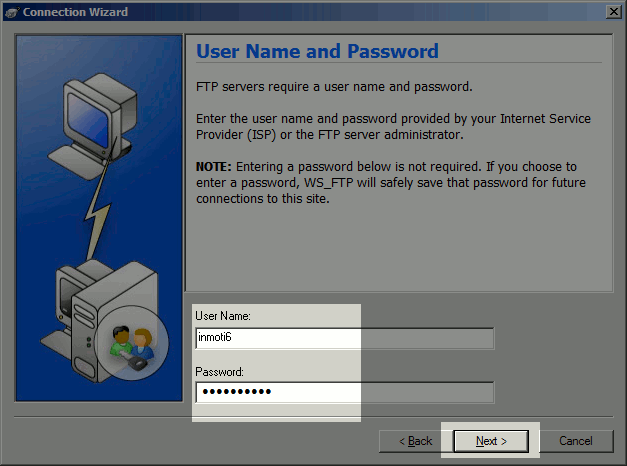
- Enter your FTP username and password, and then click Next
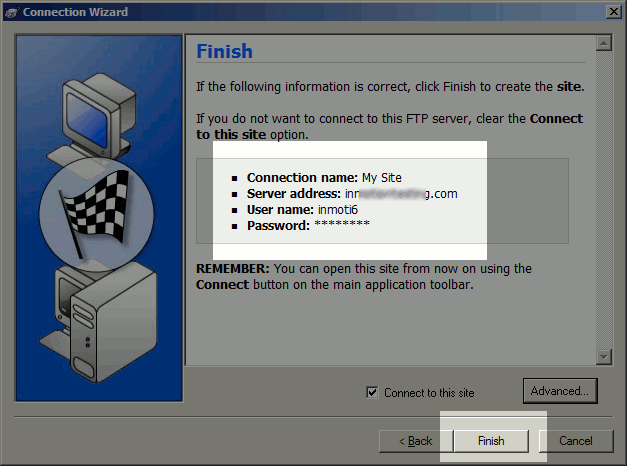
- Double check your settings and click Finish. Congratulations, you have now connected to your account over FTP with WS_FTP!
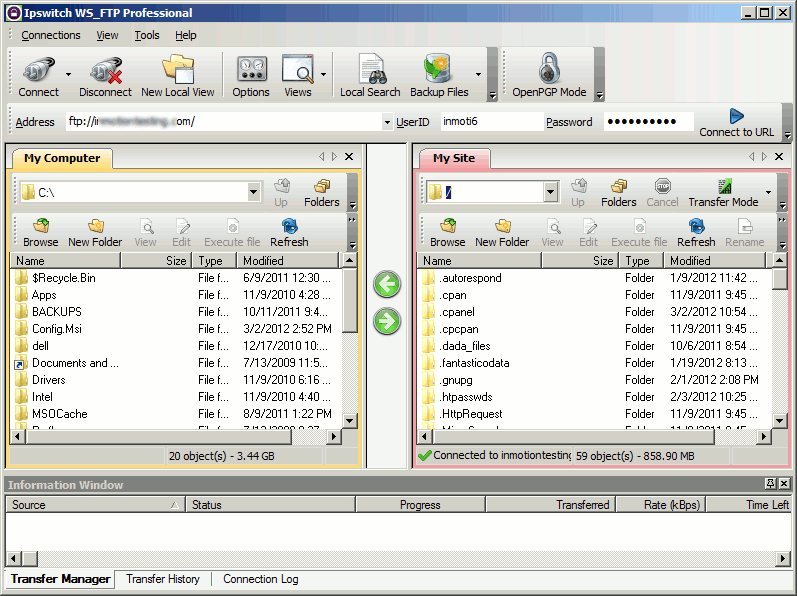


When I log in with WS_FTP it takes me to the Public_Ftp directory and I cannot go up from there to post to the Home or Public_Html directories. It has been 10 plus years since I last played around with this stuff. What am I doing wrong here?
Thanks,
Andy
Hello,
When you login to the FTP is there a setting in the program that ask for a remote directory path? If so set it to nothing or public_html.
Best Regards,
TJ Edens